
Getting started
Add Apera, give it the right role position, and turn on what you need — in about five minutes.
1. Add Apera to your server
Open apera.site and press Add to Discord, pick your server and approve. Apera asks for Administrator because undoing a nuke means recreating channels and roles, removing roles from the attacker and reading the audit log.
2. Move Apera’s role to the top
Discord only lets a bot manage roles below its own. Open Server Settings → Roles and drag Apera above every role it should be able to give, remove or restore — ideally right under your owner role. If Apera’s role is low, it can’t punish attackers who have higher roles.
3. Run /setup
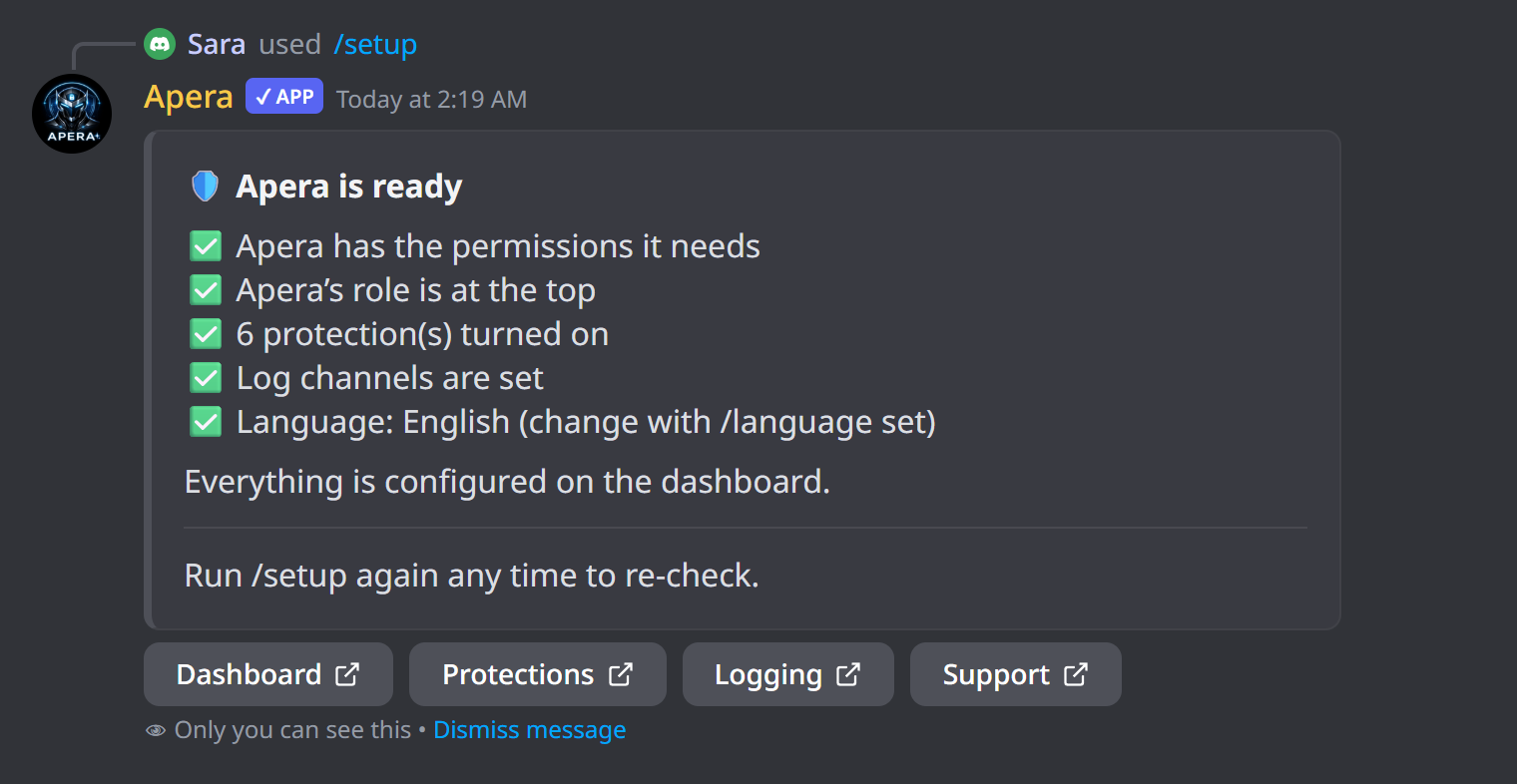
Type /setup in any channel. Apera checks its permissions, role position, log channels and main features and tells you what’s missing, with a link to the right dashboard page for each item. Add language:ar to switch Apera to Arabic at the same time.
4. Open the dashboard
Log in at apera.site/app with Discord and pick your server. Every feature has its own page with a live preview. Start with Logging (so you can see what happens), then Protection, then the community features you want.
Slash commands and ! commands
Every command is a slash command (type /). Moderation and channel commands also work with the prefix !, for example !ban @user reason or !lock. Change the prefix on the Admin commands page. Commands have a 3-second cooldown per user.
Still have a question about this?