
Tickets
Support tickets with categories, forms, claiming, ratings, transcripts and staff points.
Set up tickets
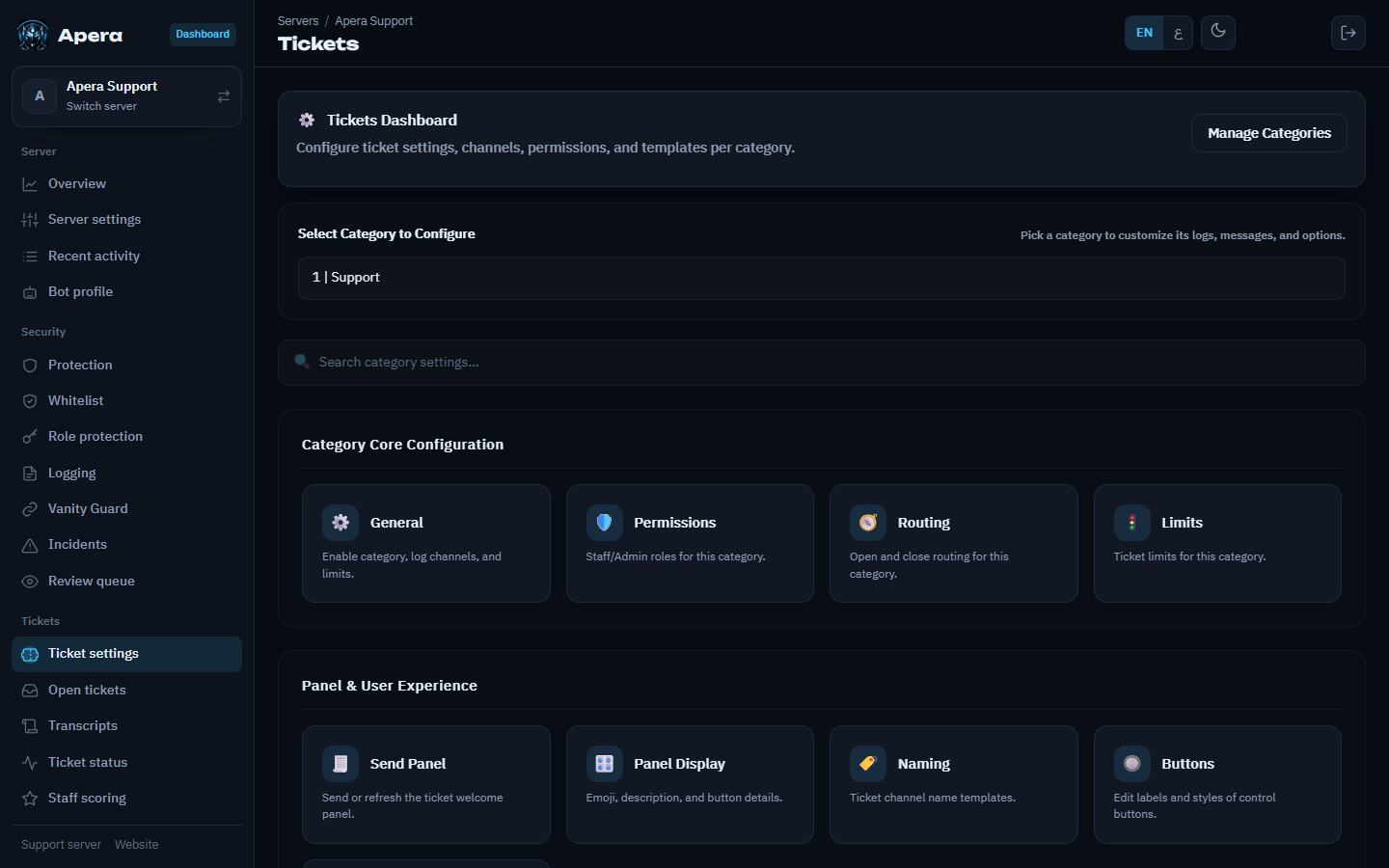
- Dashboard → Ticket settings. Turn tickets on and choose the category and log channel.
- Add categories (Support, Billing, Appeals…) with their staff roles, questions (forms) and messages.
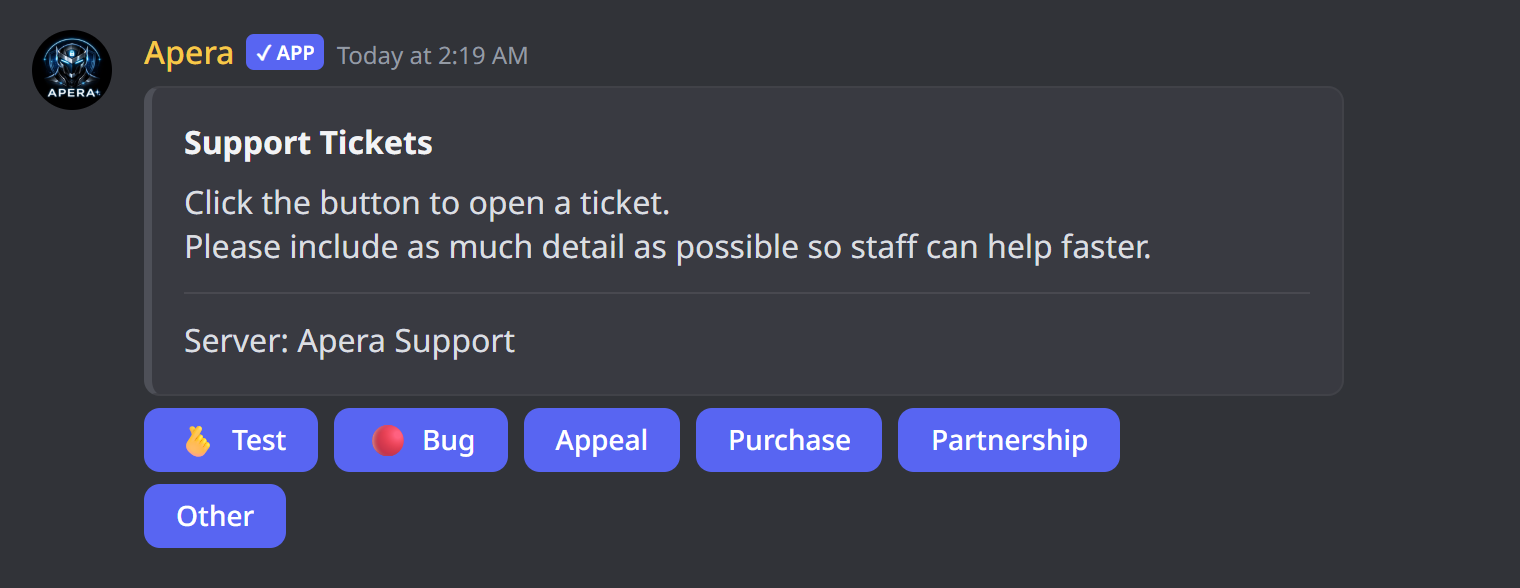
- Post the panel:
/tickets panel channel:#support. - Members press a button, answer the form, and a private ticket channel opens.
Inside a ticket
Staff can claim the ticket, add or remove people and roles, transfer it, and close it with /close or the Close button. Everything is also in /ticket actions.
Transcripts
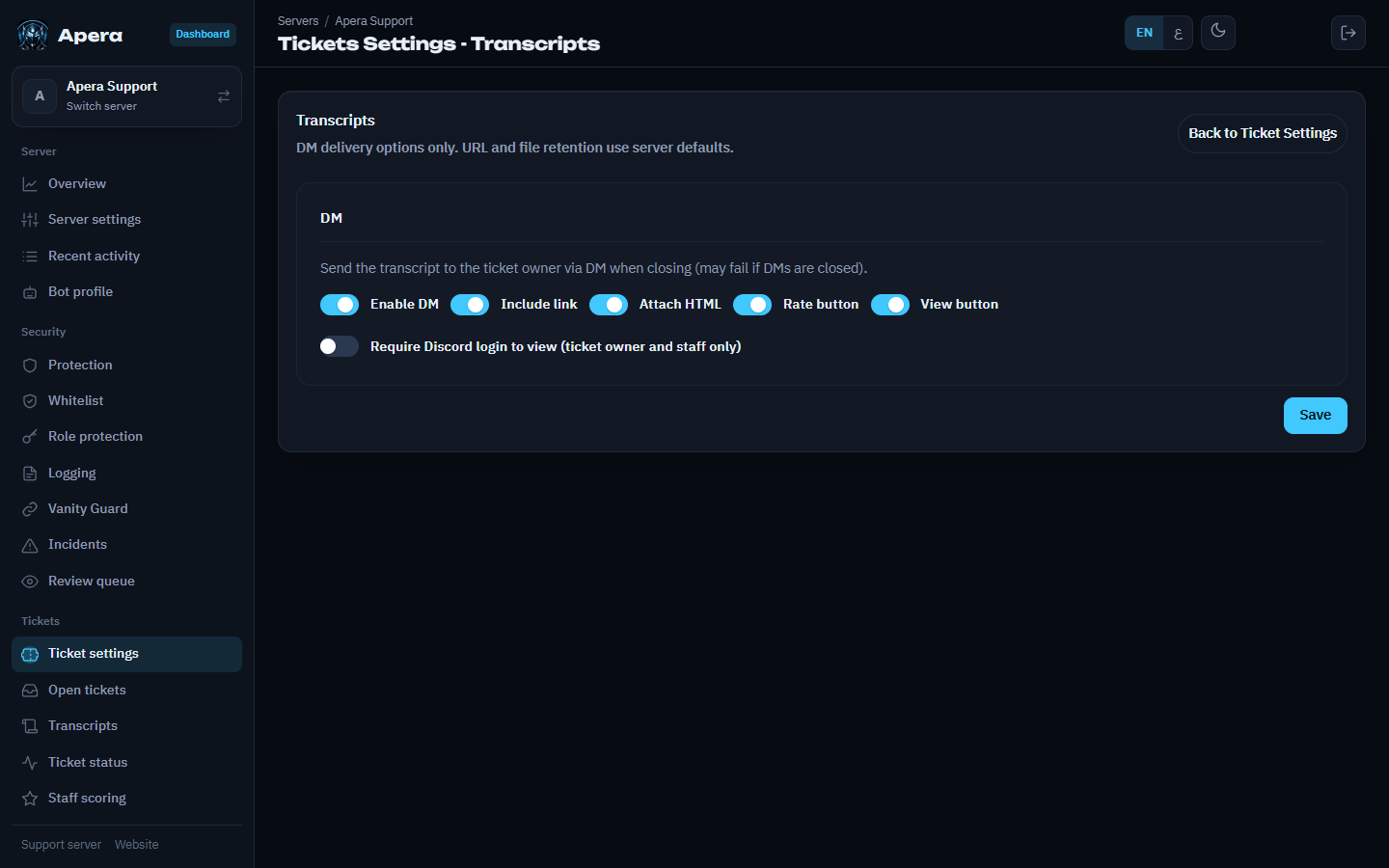
When a ticket closes, Apera saves a transcript that looks like Discord (images included) and sends it to your transcript log channel. On Tickets → Transcripts you choose what the member gets in DM: the link, the file, a View Transcript button and a Rate button.
Transcript links open directly — they contain a long private code. Turn on Require Discord login if only the ticket owner and staff should be able to open them. Transcripts are kept for 30 days.
Staff points
On Staff scoring, choose how many points claiming, replying, closing and good ratings are worth. /staffpoints leaderboard and the Staff leaderboard page rank your team.
Still have a question about this?